Dell guys are great guys, but IT'S NOT working

I still use a Scatman Special that's so old it has a crank on the side.
Still getting the job done. It ain't time for boat drinks but when it is, I got the anchor angle covered. Till then, ...

Most traders don't understand the hardware. "Workstation class" hardware is supposed to have a functional life of 10+ years.

I've seen some go much longer.

That is... if you buy a computer with expected life of "50% left"... and you get it for 25% of original cost... that's a bargain.
 
Most traders don't understand the hardware. "Workstation class" hardware is supposed to have a functional life of 10+ years.

I've seen some go much longer.

That is... if you buy a computer with expected life of "50% left"... and you get it for 25% of original cost... that's a bargain.

This only makes sense if you want to become a used computer dealer. Otherwise, you're just being a cheapskate on the very tools you'll need for a competitive advantage. Penny wise and pound foolish IMHO.
 
Just FYI.

if you use DP ports for the multi-monitors,
Good luck to you.
Your display will be reshuffled.


You can try this :

Lock the computer (press WIN+L).
Wait for about 15 minutes.
Then Unlock the computer.

Then all your displays (charting s/w, trading platform,
Excel, Browser, ladders, charts ...... will be reshuffled).
Then you have to rearrange those displays.


You can update the display card drivers / windows to Win11, and pay for special
s/w to fix this problem, try this and that setting
blablabla but there is no solution.


The problem has been there since DisplayPort was invented (> 5 years ago?).
I thought MS promised to fix this problem with Win11.

Most likely, the big corporations using multiple displays are not using
DP ports with Windows OS.
 
The only tiny caveat with the CPU (some CPU) in the T5810 may be inability to install W11 officially. Not that you need it, but when the time comes, and the software vendor stops supporting W10 you may have to research how to find a workaround. Some traders may find this to be too much. Other than that, I am with Mr Scat
 
Just FYI.

if you use DP ports for the multi-monitors,
Good luck to you.
Your display will be reshuffled.


You can try this :

Lock the computer (press WIN+L).
Wait for about 15 minutes.
Then Unlock the computer.

Then all your displays (charting s/w, trading platform,
Excel, Browser, ladders, charts ...... will be reshuffled).
Then you have to rearrange those displays.


You can update the display card drivers / windows to Win11, and pay for special
s/w to fix this problem, try this and that setting
blablabla but there is no solution.


The problem has been there since DisplayPort was invented (> 5 years ago?).
I thought MS promised to fix this problem with Win11.

Most likely, the big corporations using multiple displays are not using
DP ports with Windows OS.

I have DP... mine have never been reshuffled... but I don't lock the computer with "WIN+L"

FWIW...
 
I have DP... mine have never been reshuffled... but I don't lock the computer with "WIN+L"

FWIW...

as long as you don't lock the computer (WIN+L),
you wouldn't have that problem.
Anyway, you should go experience the windows reshuffling problem.


I have to lock it as there are kids/pets near my computers.
 
as long as you don't lock the computer (WIN+L),
you wouldn't have that problem.
Anyway, you should go experience the windows reshuffling problem.


I have to lock it as there are kids/pets near my computers.

I think we've probably all had "things" reshuffle on us... time waster to reset.

Couldn't you just unplug the keyboard instead of locking?
 
I think we've probably all had "things" reshuffle on us... time waster to reset.

Couldn't you just unplug the keyboard instead of locking?

unplug the keyboard (and mouse)?
oh no no no!

Age is catching up.
I am going to have a problem unplugging and plugging the USB plugs unless I use a powerful headlamp.
And I am going to have a problem squatting down to plug and unplug those things.


Those Microsoft staff and Displayport inventors are rather unkind towards elderly folks.
Anyway, soon they will also be old with degrading body parts.
 
as long as you don't lock the computer (WIN+L),
you wouldn't have that problem.
Anyway, you should go experience the windows reshuffling problem.


I have to lock it as there are kids/pets near my computers.
Here are some potential alternatives to WIN-L.
https://down10.software/download-kid-key-lock/
thumbnail.png

Kid Key Lock
for Windows
By Classicalsoft

User Rating


Kid Key Lock Review
Kid-Key-Lock is a simple program to selectively lock specific keyboard and mouse functions. You can use kid-key-lock to lock any of the mouse buttons, double clicks and/or the mouse wheel. Regarding the keyboard, Kid-Key-Lock can be used to lock character keys, navigation keys, function keys and/or system shortcuts (such as Alt-F4, Alt-Tab, "Start" key, etc).
Disclaimer
Kid Key Lock is a product developed by Classicalsoft. This site is not directly affiliated with Classicalsoft. All trademarks, registered trademarks, product names and company names or logos mentioned herein are the property of their respective owners.

Technical Information
Name
thumbnail.png
Kid Key Lock
File size
4.00KB
Requires
Windows 10, Windows 8/8.1, Windows 7, Windows Vista
Updated
2023-01-15
Developer
Classicalsoft
Homepage
https://down10.software/
Downloads
242 578
Download Latest Version via Updater
Screenshots

https://www.maketecheasier.com/keyfreeze-lock-keyboard-mouse/
KeyFreeze – A Simple App to Lock Keyboard and Mouse Without Locking the Screen
Vamsi Krishna
May 20, 2015
keyfreeze-featured.jpg


keyfreeze-thumbnail-fixed.jpg
For any Windows user, “Win + L” is a handy shortcut to lock your system to protect it from unauthorized activity. As useful as it is, this action will lock up the entire system including the screen. But there will be times when you just want to lock the keyboard and mouse but not the screen. This may include, but not be limited to, blocking your kids from messing with your system while watching a movie, to keep track of the progress of an activity on your computer, etc.

No matter what the reason is, there is always an app for Windows and BlueLife KeyFreeze is one such app that makes the task simple and easy.

Lock Keyboard and Mouse, Not the Screen
Using KeyFreeze to lock your keyboard and mouse is easy. First, download the application, extract it to your desktop and execute it. As soon as you execute the application, KeyFreeze will give you five seconds while displaying the unlock keys before locking your keyboard and mouse.

keyfreeze-locking.png


As soon as the lock has been activated, you can no longer use your keyboard or mouse to interact with your system. If you want to unlock the system, simply press the displayed keyboard shortcut “CTRL + ALT + F.” If you want to lock the system again, simply reuse the keyboard shortcut.

keyfreeze-unlocking.png


If you just want to lock either the keyboard or the mouse, then right click on the KeyFreeze icon in the taskbar and select the relevant option, e.g. “Lock Keyboard” to lock just the keyboard and “Lock Mouse” to only lock the mouse.

keyfreeze-right-click-options.png


Even though the application is straightforward, it does have some basic settings like playing sound while locking or unlocking, showing pop-up windows, locking on startup, etc. To access the settings panel, right click on the KeyFreeze icon in the taskbar and select the “Options.”

keyfreeze-settings.png


That being said, if you want to quickly launch the KeyFreeze program whenever you want to lock your system, then you can create a simple AutoHotKey script and schedule it to launch it on system startup. To do that, you first need to download and install the AutoHotKey application.

Once installed, create a new text document and add the following script to the file and save it. Once you’ve saved the file, rename it to “lock.ahk” (or whatever you want). Just make sure that you are using “.ahk” extension instead of “.txt.” Also, don’t forget to change the application location according to where you’ve placed the KeyFreeze application.

;;; Launch KeyFreeze Application
^!K::Run "C:\Program Files\KeyFreeze\KeyFreeze.exe"
return
keyfreeze-autohotkey-script.png


What the above script does is launch the KeyFreeze application whenever you press the keyboard shortcut “CTRL + ALT + K.” Of course, you can always customize the keyboard shortcut to suit your needs. Now, double click on the file and test the keyboard shortcut.

Once you are done with the configuration, create a basic scheduled task using the task scheduler to launch it at system startup, and you are good to go.

That’s all there is to do, and it is that simple to use KeyFreeze to lock your keyboard and mouse. Hopefully that helps, and do comment below sharing your thoughts and experiences about using this free app to lock your system.

https://www.howtogeek.com/11570/disable-the-keyboard-with-a-keyboard-shortcut-in-windows/
How to Temporarily Disable Your Keyboard With a Keyboard Shortcut in Windows
WalterGlenn_square.jpg
WALTER GLENN
WalterGlenn_square.jpg


@wjglenn AND NICK LEWIS
PXL_20220210_164215515.MP3.jpg


UPDATED OCT 24, 2022, 11:13 AM EST | 3 MIN READ
Shutterstock_1690525267.png

Bogdan Sonjachnyj/Shutterstock.com
Download and install the "KeyboardLocker" tool, then press Ctrl+Alt+L to lock your keyboard. Type the word "unlock" to unlock your keyboard again.
If you’ve got a pet or small child, you know that an unguarded keyboard can spell disaster — or more likely, spell “dhjkhskauhkwuahjsdkja,mnsd”. We’ve got a tool for locking and unlocking your keyboard with a quick keyboard shortcut.

RELATED: The Beginner's Guide to Using an AutoHotkey Script

Keyboard Locker is a small program that handles this job well and takes up few system resources. It was originally a small AutoHotKey script written by an AutoHotKey forum-goer named Lexikos. We’ve spruced it up a bit and compiled it so that you don’t need to have AutoHotKey installed. If you do have AutoHotKey installed, we’ve included the original script in the download so that you can tweak it to your liking.


4 minutes, 54 seconds of 5 minutes, 0Volume 0%


Download and Run Keyboard Locker
To get started, go ahead and download Keyboard Locker. Unzip the Keyboard Locker folder wherever you want to keep it on your hard drive. and open the Keyboard Locker folder. You’ll see a number of files inside. These include some icon files and a readme, but the important two files are “KeyboardLocker.exe” and “KeyboardLocker.ahk.”

wdk_1-650x331.png


If you do not have AutoHotKey installed, you’ll need to double-click “KeyboardLocker.exe” to run it. This file is an AutoHotKey script compiled to run as a standalone program, so that you don’t need AutoHotKey to use it.

If you already use AutoHotKey, you can use the “KeyboardLocker.ahk” file instead to run the script directly. The advantage of using the script version is that, if you’re familiar with AutoHotKey, you can edit the script yourself to change the shortcuts for locking and unlocking your keyboard.

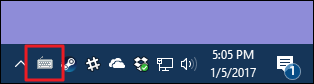
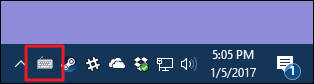
When you launch Keyboard Locker, you’ll see a small keyboard icon appear in your notification area. The tool is now ready for use.

wdk_2.png


To lock your keyboard, press Ctrl+Alt+L. The Keyboard Locker icon changes to indicate that the keyboard is locked.

wdk_3.png


Advertisement
Almost all keyboard input is now disabled, including function keys, Caps Lock, Num Lock, and most special keys on media keyboards. There are a few key combinations that will still work, such as Ctrl+Alt+Delete and Win+L, but those are extremely unlikely for a paw or tiny hand to hit by accident.

When you want re-enable keyboard input, simply type in the word “unlock.” The Keyboard icon changes back to normal again to show that the keyboard is unlocked.

wdk_4.png


How to Show Balloon Notification Reminders
By default, Keyboard Locker does not display notifications when you lock or unlock your keyboard. If you’d like to see them, right-click the Keyboard Locker icon in the notification area and choose “Show Tray Notifications.”
 
Back
Top