This is a good idea to back up your itunes to a flash drive just in case your hard drive goes bad or you want to do a clean install of Windows. Obviously, you want to also backup your photos and documents too.
Find the iTunes Media folder
By default, your iTunes Media folder is in your iTunes folder:

Consolidate your iTunes library
Before you make a backup of your iTunes files, consolidate all of your media into the iTunes Media folder. To consolidate your media:
Back up your library and media files
After you consolidate your media files, you can back up your library and media files to an external drive.
Restore your library from a backup
You can restore your iTunes library or iTunes Media folder from your external drive to your computer.
Published Date: Nov 24, 2016
Find the iTunes Media folder
By default, your iTunes Media folder is in your iTunes folder:
- Mac: Finder > username > Music
- Windows Vista or later: \Users\username\Music\
- Windows XP: \Documents and Settings\username\My Documents\My Music\
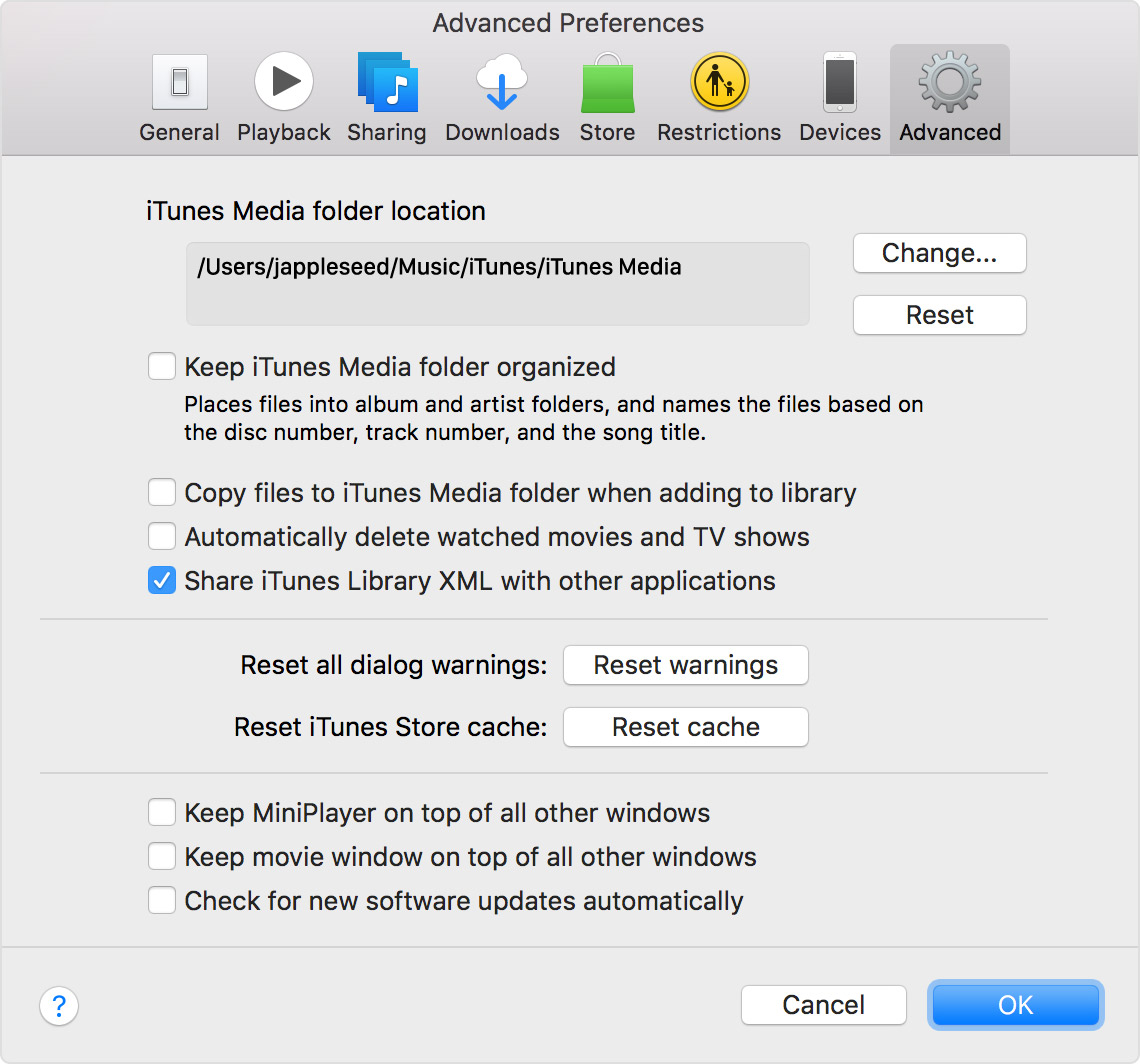
- Open iTunes.
- Mac: From the menu bar at the top of your computer screen, choose iTunes > Preferences.
Windows: From the menu bar at the top of the iTunes window, choose Edit > Preferences. - Click the Advanced tab.
- Look in the box under "iTunes Media folder location" for the location of your iTunes Media folder.
Consolidate your iTunes library
Before you make a backup of your iTunes files, consolidate all of your media into the iTunes Media folder. To consolidate your media:
- Open iTunes.
- From the menu bar at the top of your computer screen or at the top of the iTunes window, choose File > Library > Organize Library.
- Select "Consolidate files."
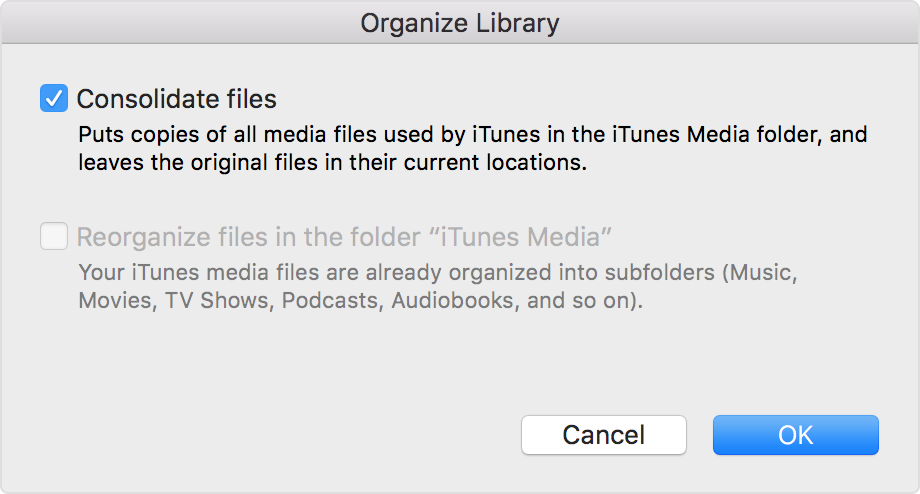
- Click OK.
Back up your library and media files
After you consolidate your media files, you can back up your library and media files to an external drive.
- Quit iTunes.
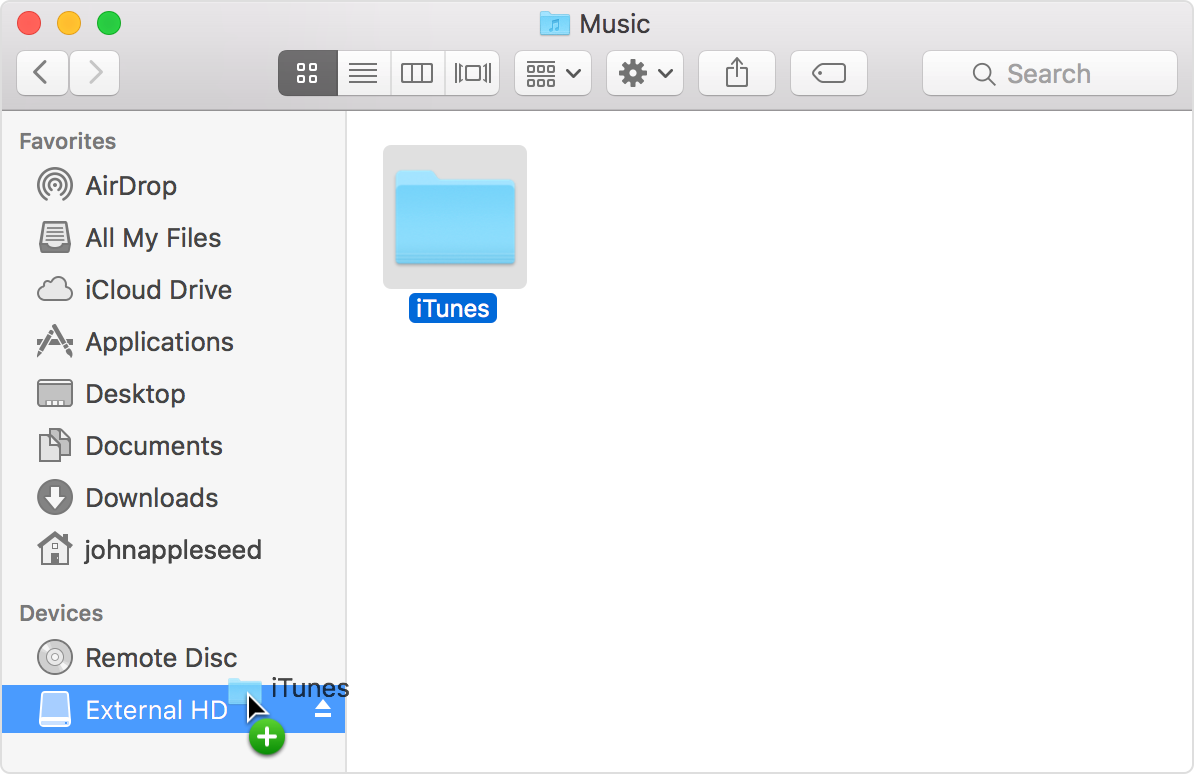
- Find your iTunes folder.
- Drag the iTunes folder from its location to an external drive. Your library and media files copy to the drive.
Restore your library from a backup
You can restore your iTunes library or iTunes Media folder from your external drive to your computer.
- Quit iTunes.
- Locate your external drive.
Mac: On the Desktop or Finder sidebar.
Windows: In My Computer. - Drag the iTunes folder (that you backed up earlier) from your external drive to where you want it on your internal drive. We recommend that you put the iTunes folder back into its default location.
- Hold down the Option key (Mac) or Shift key (Windows) while opening iTunes.
- When you see a message that asks you to Choose iTunes Library, click Choose Library.
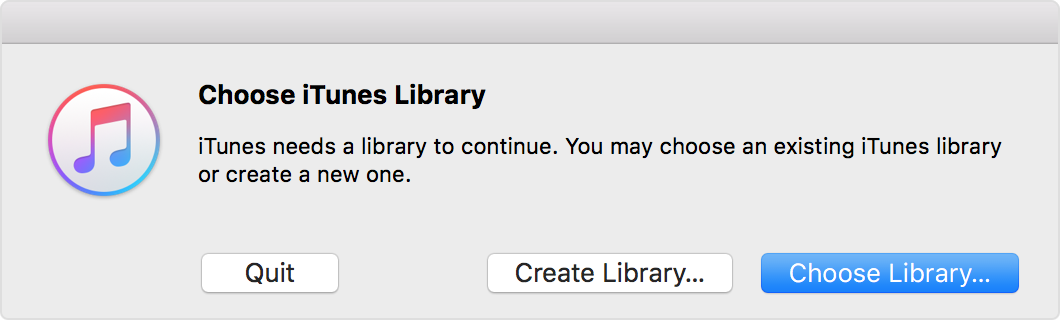
- Choose the iTunes folder (that you dragged in step 3) from your internal drive.
- Mac: Click Choose.
Windows: Click Open. - Choose the iTunes Library.itl file inside.
Published Date: Nov 24, 2016